I tried using AI to draft a project update email last month. After 20 minutes of back-and-forth, I gave up and wrote it myself.
The AI kept giving me something too formal, then too casual, then too long. I spent more time editing its output than if I’d just started from scratch.
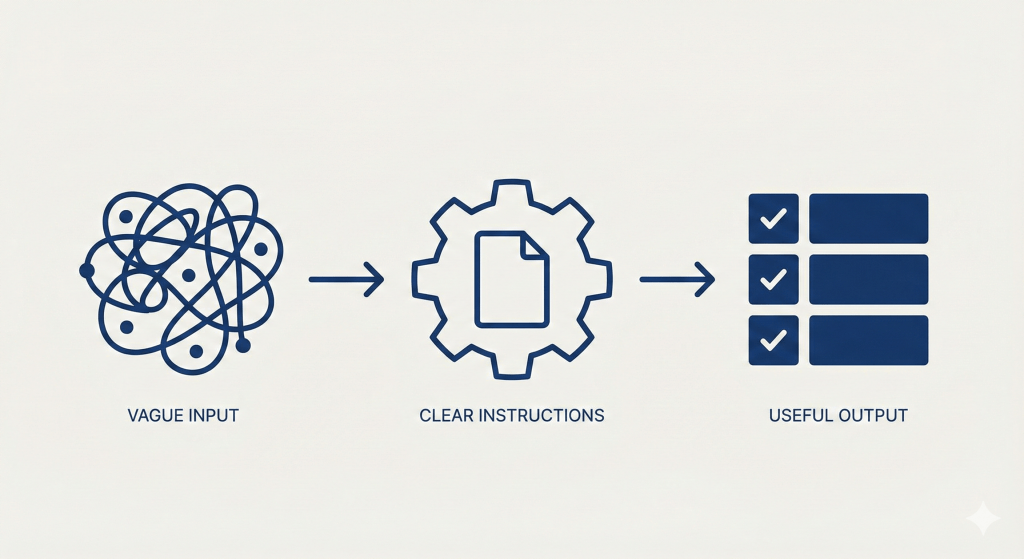
That’s when I realized the problem. I wasn’t giving the AI clear enough instructions about what I actually wanted.
After weeks of testing different approaches, I found five patterns that work. Here they are.
1. Specify the Role and Format
Instead of this: “Write an email about the project delay”
Do this: “You’re a project manager. Write 3 bullet points (max 12 words each) explaining the delay, then one 30-word paragraph with next steps.”
Why it works: The AI knows exactly what you need. No guessing, no editing, ready to use.
When to use it: Emails, summaries, any routine communication
2. Show an Example
Instead of this: “Summarize this article”
Do this: “Summarize this article using this format: [Paste an example summary you like]
Now apply the same format to this article: [Paste new article]“
Why it works: AI copies examples better than it follows descriptions.
When to use it: Anything where you need consistent output—meeting notes, reports, weekly updates
3. Include the Source Text
Instead of this: “Summarize our Q3 numbers”
Do this: “Here’s the Q3 report: [Paste full text]
Summarize the top 3 metrics in bullet points.”
Why it works: Without source text, AI invents plausible-sounding details. With it, answers stay accurate.
When to use it: Any task where facts matter—reports, meeting notes, data analysis
4. Save Templates for Repeat Tasks
Once you find a prompt that works, save it.
I have templates for:
- Meeting notes
- Email drafts to my team
- Weekly progress summaries
- Breaking projects into tasks
Now when I need meeting notes, I don’t start from scratch. I use my template, drop in the transcript, done.
How to start: Build one template this week for one task you do regularly. Test it. Save it. Reuse it.
5. Keep It Simple First
Instead of this: A 200-word prompt with detailed step-by-step instructions
Do this: “You’re a business analyst. List the 5 most important insights from this data.”
If the output isn’t good enough, then add detail.
Why it works: Simple often works better. You can always make it more complex if needed.
When to use it: When starting any new type of prompt
Real Example: My Project Status Template
This is what I actually tried:
You're a project manager preparing a weekly status report for leadership.

I'm pasting updates from my team below. Create a status summary with:

1. Overall status: On Track / At Risk / Blocked (pick one and explain why in 15 words)

2. Progress this week: 3 completed items (one line each)

3. Blockers: Top 2 issues preventing progress (include what's needed to unblock)

4. Next week priorities: 3 critical items

Format: Use bullet points. Keep total under 200 words. Be specific, not vague.

[Paste team updates here]
This turns scattered updates from my team into one executive-ready report in 60 seconds. Before this template, I spent 30 minutes every Friday doing it manually.
How to Start
Pick one task you do every week:
- Email drafts
- Meeting summaries
- Task lists
- Status updates
Create one prompt for it. Test it twice. Adjust. Save.
That’s one template that saves you 10 minutes each time.
Next week, make another.
In a month, you’ll have 4-5 templates that actually work.
The goal isn’t using AI for everything. It’s using it well for repetitive work—so you can focus on things that need your actual thinking.
Leave a Reply